Introduction
This article describes how to go from a table showing default significance differences (comparing to the complement of the cell):

To a state where significant differences are shown against the previous time period in each row:

Requirements
- A project containing a table which has time periods in the columns based on a valid date (i.e.,
the data shown in the columns of the table be a Date/Time variable).
Method
- Select the table which contains time periods in the columns.

- Right-click the table and select Table Options > Statistical Assumptions > Significance levels
- In the Show significance drop-down box, select Arrows, Font colors, or Arrows and Font colors.
- Select the Test Type tab
- From the Date drop-down box, select Compare to previous period.
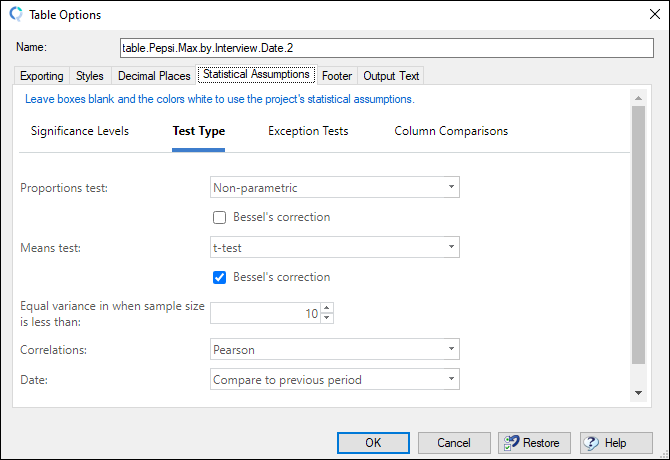
- Click OK
The results are as follows:

Restore all of the fields to their default values
- Click the Restore button

Next
How to Compare Significant Differences Between Columns